



You have implemented every optimization technique your team knows: compressing images, minimizing code, and even fixing technical errors. Yet visitors have to wait for five seconds before they can access your site, and it randomly crashes in the afternoon.
Is this worth losing sleep over? Well, if losing 60% of your customers because your checkout button or contact form takes five seconds to load makes your stomach tighten, then you know the answer.
Logically, migrating your website to a new host is the best way to improve website loading speed, but it can be scary. How do you move hundreds of pages without breaking links? How do you preserve your hard-earned SEO rankings?
Your fears and questions are valid. But as usual, there is always a way. In this guide, I will show you how to safely migrate a website without losing SEO, common errors to avoid, and the best way to outsource a website migration.
Important Things to Know Before Migrating a Website
Before you migrate a website to a new host, research your new host provider, appoint your migration team, set a realistic timeline, back up the website data, and audit the current website.
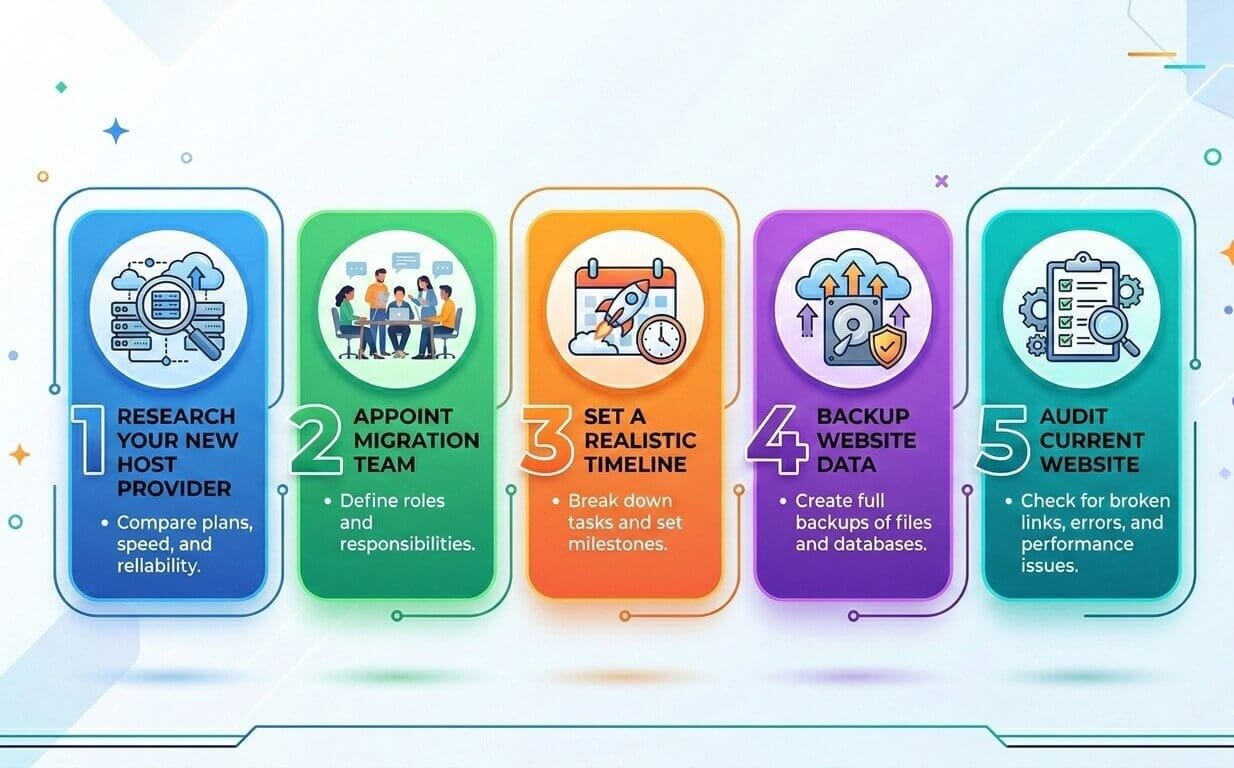
1. Research Your New Host Provider
Before migrating to a new host, ensure you thoroughly research their services and evaluate them based on technical compatibility. You don’t want to start another migration plan in the next three years.
Check their guaranteed uptime and ensure it is at least 99.9%, security level, and whether they offer assisted migration. You should also read at least 5-10 customer reviews to get honest information about their services
2. Appoint Migration Team
This may sound basic, but ensure you appoint competent team members for the website migration and assign roles accordingly.
Assign a project manager to oversee the whole migration process, developers to handle the technical aspects, and SEO specialists to ensure the right SEO migration standards are followed.
You can also outsource website migration to professional marketing agencies such as Edgerank.
3. Set a Realistic Timeline
Do not migrate your website during major product launches or high-seasonal traffic periods. You don’t want users to be greeted with the deadly 404 error message when they visit your site.
Instead, migrate on the weekend or anytime you notice user activity is low, and set realistic deadlines to speed up the process.
4. Backup Website Data
You don’t want to lose all your website data images, files, databases, and email accounts because you migrated to a new host.
The best way to avoid such an awful occurrence is to back up all current data on your website to at least two different locations (Cloud Storage or local drive) before migrating.
Back up all your files, images, email accounts, and database content, including posts, comments, pages, etc.
You can back up your website data using your current web hosting tool, like CPanel, plugins like Updraft if it’s a WordPress site, or manual FTP clients like Filezilla or Transmit.
You can check out this resource for a full guide on how to back up website data.
5. Audit Current Website
The best way to measure the impact of a website migration is to compare it against the old website's performance and rankings.
To do this, conduct a comprehensive SEO audit on your current website to monitor keyword rankings, site speed, and traffic, and identify technical issues.
You can use tools like Google Analytics, Google Search Console, and Semrush to analyze website performance in search engines and Screaming Frog to crawl existing pages and identify issues.
How to Migrate a Website to a New Host (Step-by-Step)
Once you have completed your preparation phase, the next step is execution. Follow these steps to safely migrate your website without losing SEO.
1. Set Up Your New Hosting Account:
- Step 1: Purchase and activate your new hosting plan.
- Step 2: Install your content management system (CMS) on the new server.
- Step 3: Create a staging environment or use a temporary domain URL. I.e., a private environment to test changes before you go live.
At this stage, your new hosting should be fully ready to receive your website files.
Pro Tip: Do not cancel your old hosting account yet.
2. Upload Files and Import Database to the New Host
Now move all the files and the database you previously downloaded to the new server.
- Step 1: Upload website files using FTP or a file manager.
- Step 2: Create a new database on the new host.
- Step 3: Import the old database into the new database.
- Step 4: Update configuration files (e.g. .env or wp-config.php).
Once done, your website should load correctly on the staging URL.
3. Test the Website Thoroughly Before Going Live
Ensure you check the following before going live:
- Homepage and internal pages
- Images and videos
- Contact forms
- Checkout process (if e-commerce)
- Internal links
- Mobile responsiveness
- Verify that meta titles and descriptions are intact.
- Confirm canonical tags are correct.
- Crawl the site using a tool like Screaming Frog to detect broken links or missing pages.
4. Implement 301 Redirects (If URL Structure Changed)
If your URLs are changing, you must redirect old URLs to the new ones so users don’t get 404 errors when visiting the page.
Follow these steps to implement a 301 redirect:
- Step 1: Export all existing URLs from your old site.
- Step 2: Map them in a spreadsheet to the new URLs.
- Step 3: Implement 301 redirects via .htaccess, server configuration, or a redirect plugin.
5. Update DNS Settings:
Once testing and redirects are complete, update your domain’s DNS records to point to the new host and allow 24–48 hours for propagation.
6. Submit Sitemap and Monitor Performance
After your site is fully live, submit your updated XML sitemap in Google Search Console to check for crawl errors and monitor indexing status.
You should track the following for at least 30 days:
- Organic traffic (via Google Analytics)
- Keyword rankings (using tools like Semrush)
- Page load speed
- Redirect performance
6 Common Errors to Avoid During Website Migration
Common errors to avoid during website migrations include missing 301 redirects, failing to update the Robots.txt file, neglecting to audit your new website, abandoning external links, going live immediately, and not monitoring new site performance.
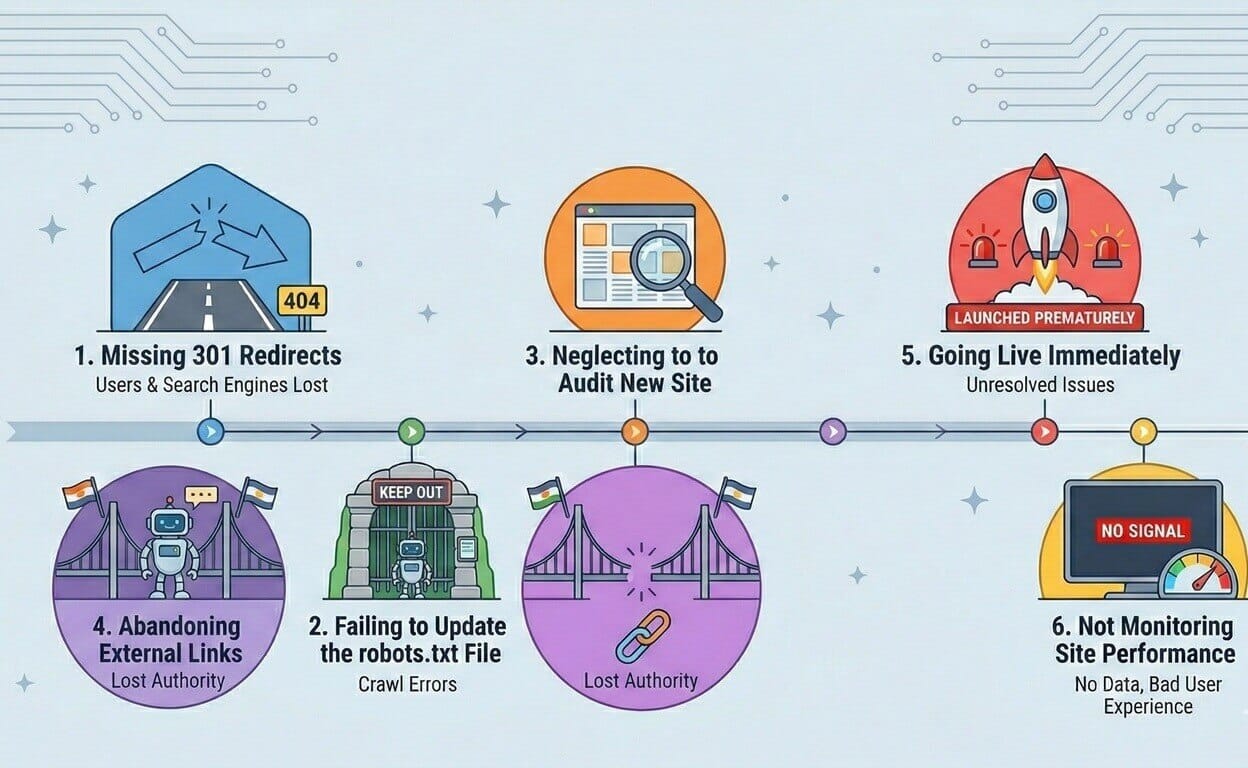
1. Missing 301 Redirects
Do not forget to redirect all your old URLs to the new ones during a website migration. You don’t want users to hit 404 when they visit pages on your site or even lose all your hard-earned backlinks.
How to Avoid
You can avoid this error by using tools like Screaming Frog to compile a list of all your current URLs and create a spreadsheet with two columns. One for the old URL and the second for the new URL. This ensures you map the old URL to the right one on your new site. Then, create an `.htaccess` file for Apache servers or use plugins like “Redirection” on a WordPress site.
2. Failing to Update the robots.txt File
You must have blocked the staging environment to prevent the new website from being indexed; however, you shouldn’t forget to unblock it once you go live.
How to Avoid
Immediately after your new website goes live, ensure you unblock all rules and update your sitemap so Google bots can crawl and index it.
You can use tools like Screaming Frog to verify your `robots.txt` file is properly configured and monitor the `robots.txt` tester in Google Search Console to check for errors.
3. Neglecting to Audit New Site
You don’t want to start having issues with your new site. Broken links, failed redirects, missing content, and server errors can negatively impact your new site's SEO.
How to Avoid
To avoid this error, use tools like Screaming Frog to crawl your website and identify issues, verify that old URLs redirect to the new pages, and confirm Google can index your site.
4. Abandoning External Links
You don’t have to lose all your hard-earned backlinks because you migrate your website.
How to Avoid
To preserve your backlinks, use tools such as Ahrefs or Moz to identify pages with high backlinks on your site, then implement a 301 redirect to pass the majority of link equity to the new URL.
You can also contact the webmaster of high-authority websites and inform them that you’d like to replace the old URL with a fresh new one.
5. Going Live Immediately
Yes, I know you can’t wait to start using your new website. But no, you shouldn’t go live immediately until it has been thoroughly reviewed. Check for 301 redirects, verify tags, test checkout and all other pages, and ensure they work as expected.
6. Not Monitoring Site Performance
You had a reason for migrating your website to a new one. The best way to measure your new website's performance is by comparing it with your previous website. That is why it is always important to keep track of your old website statistics before migration.
Monitor your new website analytics, keyword rankings, and page load time. Verify 301 redirects and check the Google Console to find errors.
How to Outsource Website Migration
Now, I have shown you how to migrate a website to a new host without losing SEO. However, if you feel website migration is a whole lot of work (which it is) or your team members don’t have the time, then you should outsource it.
Edgerank agency is a website migration agency that helps brands migrate their website without visitors noticing the switch or losing SEO and data.
The team employs a manual, engineer-led migration by backing up all your current website data, including your emails, configuring your MX records so you don’t miss a single client email during the switch, migrating your new site to the new server while the old one is actively running, and configuring the new server settings to ensure your site loads faster and ranks higher in search results.
You don’t have to wait for weeks or months before migrating your website. The Edgerank website migration process is fast; it typically takes 1 to 3 days, depending on your website's complexity.
If migrating your website to improve page load speed, rank higher in search results, or improve user experience is on your top list, book a free one-on-one call with the Edgerank team to discuss the process and pricing.
Frequently Asked Questions About Website Migration
What is the Best Website Migration Company in the USA?
The best SEO website migration consultant in the US is the Edgerank Agency. This team employs a zero-downtime strategy that ensures your website doesn’t go down during the transfer and all your data is carefully moved to the new website without losing SEO.
What Could Cause a Website to Suddenly Load Slowly?
Possible reasons your website is suddenly loading slowly include a low-quality web host, heavy traffic overwhelming the server resources, and inadequate caching techniques. You can fix this by upgrading to a high-performing server, upgrading hosting, and implementing HTTP and server-side caching.
How Long Does it Take to Migrate a Website?
The timeline for migrating a website varies depending on site size and complexity. For instance, a small WordPress blog can take 30 minutes to 4 hours, while an e-commerce website can take 1 to 3 weeks.
Can I Migrate a Website Without Experiencing Any Downtime
Yes, you can migrate a website without experiencing any downtime. Website migration agencies like Egerank offer a zero-downtime migration, ensuring both your old and new servers run simultaneously. After the migration is complete, the team updates your Domain Name Server (DNS), and visitors can start interacting with your site on the new server without experiencing any downtime.
How Much Does a Website Migration Cost in the US?
Website migration cost in the US varies depending on the website's complexity. A simple website migration usually costs $100 to $500, while e-commerce sites can range from $600 to $2000.
How Do I Protect My SEO During a Website Redesign?
To protect your SEO during a website redesign, audit your current website to identify your current rankings, traffic, and high-performing pages. Then implement a 301 redirect to prevent 404 errors, keep existing URLs, thoroughly test the site to identify any technical issues, update internal linking, and submit a new XML sitemap in Google Search Console.
Does Redesigning a Website Affect Its SEO?
Yes, redesigning a website can affect its SEO both positively and negatively. If you accidentally remove top-ranking pages on our site, change URLs without proper redirects, and use heavy visuals in your new website design, it will negatively impact your SEO. However, if you implement a proper 301 redirect, update the `robots.txt` file, optimize for mobile view, and boost your website load speed, it will significantly improve your SEO.
Conclusion
Migrating your website to a new host doesn't have to cost you your SEO rankings, high-quality backlinks, or even cause you to lose visitors due to 404 error messages.
In this guide, I have shown you how to migrate a website without losing SEO and common errors to avoid during the migration.
I have also shown you the best website migration consultant in the US, Edgerank Agency. This team employs a zero-downtime strategy, ensuring your website remains active during the migration and preserves all your website SEO and data.
If outsourcing website migration works best for you, reach out to the Edgerank team, and if you prefer to handle the migration process yourself, follow the steps I shared in this guide.


